
This guide walks you through the process of provisioning a Hetzner server directly within Pivotlar, using Vultr’s API. In this documentation, the terms “Instance” and “Server” are used interchangeably.
Step 1: Create a Hetzner Account #
If you don’t have a Hetzner account, visit Hetzner — and signup for an account .
- Complete the sign-up process
- Verify your email
- Log into your Hetzner dashboard

Step 2: Enable Hetzner API Access #
To connect your Hetzner account with Pivotlar, you’ll first need to generate an API token. Follow these steps:
On the dashboard, either:
- Select an existing project, or
- Click New Project to create a new one.

Inside your selected project:
- Click Security from the left-side menu.
- Navigate to the API Tokens tab.
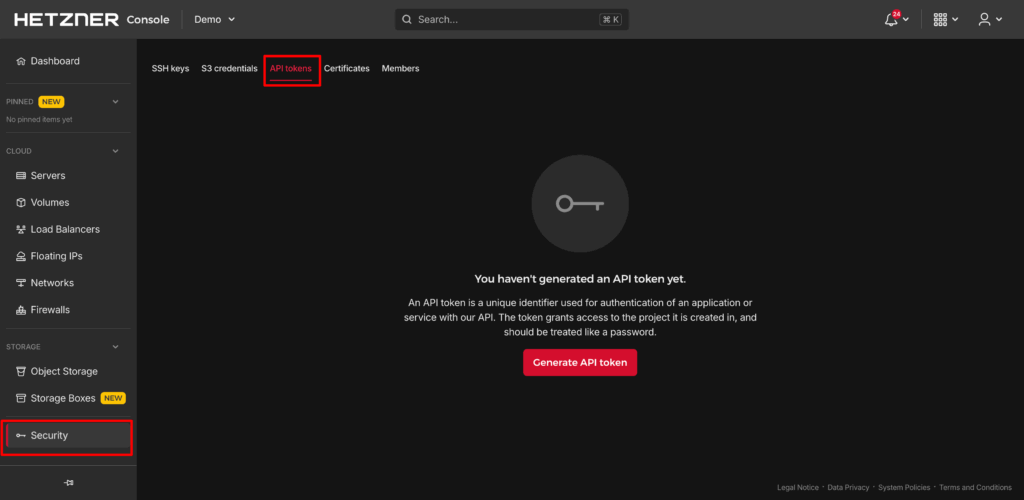
Click the Generate API Token button.
Fill in the required details:
- Token Name – Give your token a recognizable name (e.g., Pivotlar Integration).
- Permissions – Select Read & Write access.
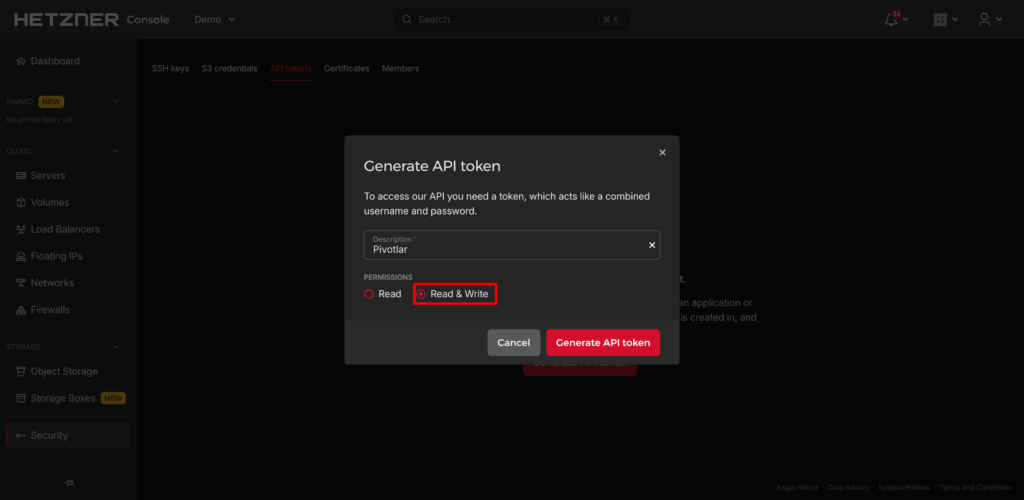
- Click Generate Token to create it.
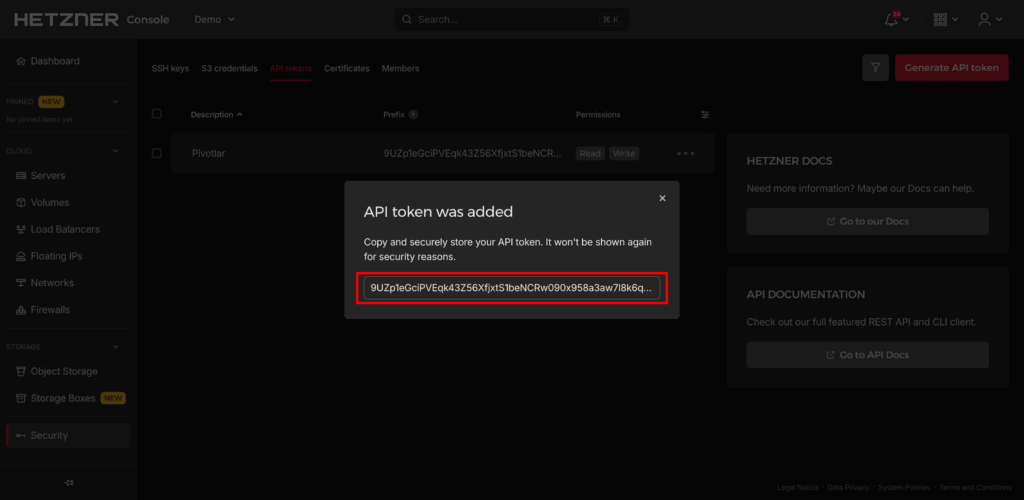
- Once the token is generated, copy it immediately and store it in a secure location. You will need this token to integrate Hetzner with Pivotlar.
Step 3: Add the Token to Pivotlar #
In your Pivotlar dashboard:
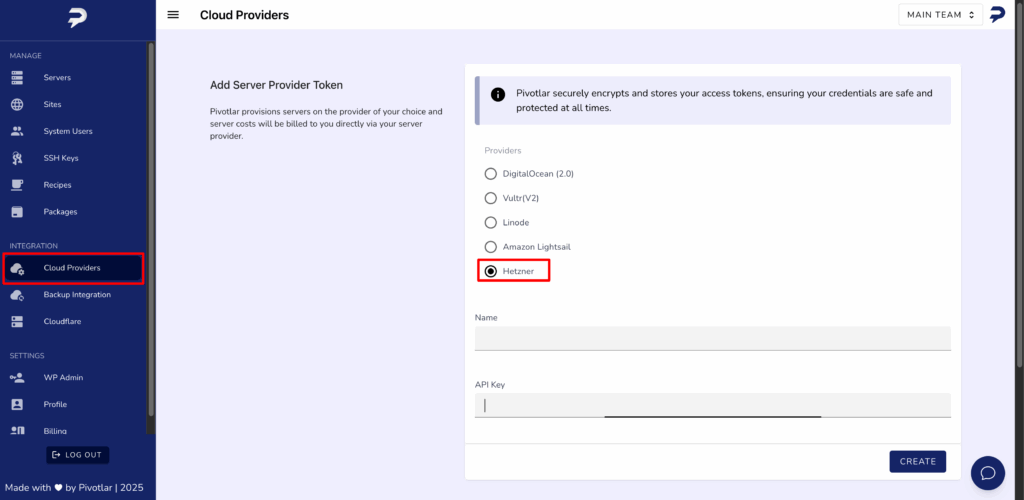
- Click on your Cloud Provider in the right-sidebar menu.
- Select the Hetzner option
- Name the token for identification .
- Under API key, paste your Personal Access Token.
- Click Create button to complete the integration
Step 4: Provision Your Hetzner Server #
With your token added, you can now provision a server:
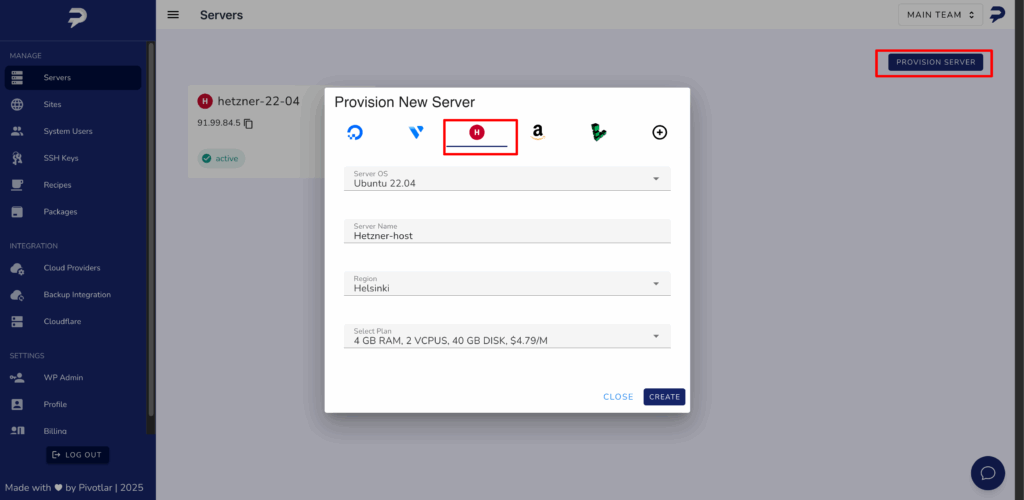
- Go to the Servers page in Pivotlar.
- Click Provision Server and choose Hetzner as the provider.
- Fill in:
- OS (We recommend Ubuntu 22.04 LTS)
- Server Name
- Plan
- Region
Click “Create” to start provisioning your server
Final Notes #
- You can provision multiple servers in parallel by repeating the steps above.
- To get started with your first WordPress site, head to the Sites section of your Pivotlar dashboard.
What’s Next? #
Now that your server is up and running, you’re ready to launch WordPress websites with a few clicks. Learn how to create your first site in our Deploying a WordPress Site guide.
Need Help? #
Reach out to our support team via support@pivotlar.com


